
_-_Icon_Blue_(RGB_300ppi).jpg)


 14363
14363
It is important to note that Colorado Springs School District 11 has a 90 day password policy for employee accounts. This policy requires all employees to change their password, at a minimum, once every 90 days. It can be done more frequently at the user's discretion but MUST be done every 90 days. You will receive a popup and daily email notifications about 2 weeks before your password expires reminding you to change it.
Changing your D11 password on a Windows Computer (On D11 Network)
1. From your Windows 11 Desktop screen, hold down Ctrl+Alt+Delete all at the same time. You should see a few options. Click "Change Password".

2. On the next screen, enter your old password, a new password, and then repeat the new password in the box labeled "Confirm password".
New Password Requirements
-
The password you choose cannot contain your name and MUST be 8 characters long with 3 of the following:
- 1 Uppercase
- 1 Lowercase
- 1 Number
- 1 Special Character
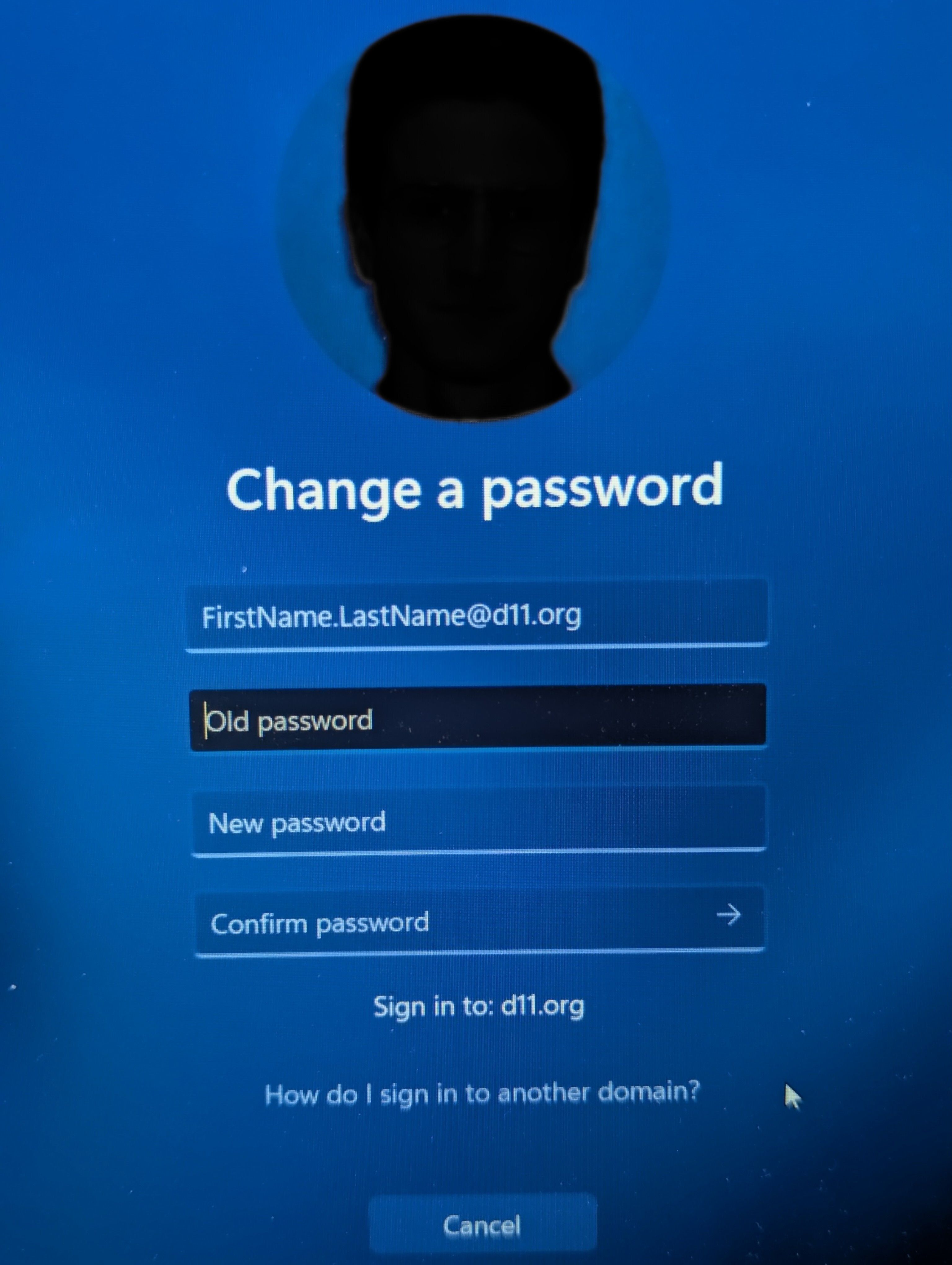
3. Click the arrow next to the password confirmation box or press enter.
4. If you have met the password requirements you will receive confirmation that your password was updated successfully. Click the "OK" button to return to the desktop
Changing your D11 password on a macOS Computer (On D11 Network)
1. On your macOS computer, click the D11 icon in the upper right corner of your screen, then select "Change password..."

2. In the small window that opens, enter your old password, a new password, and repeat the new password in the box labeled "Verify". Then click the "Change Password" button.
New Password Requirements
The password you choose cannot contain your name and must be 8 characters long with 3 of the following:
- 1 Uppercase
- 1 Lowercase
- 1 Number
- 1 Special Character

3. If you have met the password requirements, a D11 window will appear with your email in the first text box. After verifying the email, enter your new password in the box below.

Important: If you change your password on a Windows machine and subsequently have trouble logging into your mac, you will need to call into the Support Center at 520-2211 or reach out to your in building Support for guidance on updating your password. To avoid having troubles logging into your mac, always change your password on your mac, then log into any windows machines with the new password you created.
Changing your D11 Password Through Office 365 (For ChromeOS and Windows devices)
This option is available on the D11 network and at home
1. In your browser, sign into Office 365 using your district credentials (a link to Office 365 is found in the Quick Links folder in Chrome).

2. Click on your name at the top right and then choose "View Account"

3. Choose "Change Password"

4. Enter your old password, a new password, and repeat the new password in the box labeled "Confirm new password".
New Password Requirements
The password you choose cannot contain your name and MUST be 8 characters long with 3 of the following:
- 1 Uppercase
- 1 Lowercase
- 1 Number
- 1 Special Character

5. Click submit and your password will be good for the next 90 days.
If you have any questions or concerns, please reach out to our Support Center via a HappyFox ticket or by calling 719-520-2211.
Please Note:
The information provided in this knowledge base article is a living document and is subject to change. We make every effort to ensure the accuracy and relevance of the content per the last edited date, but due to the evolving nature of the subject matter, updates and revisions may occur at any time. Please continue to check back to the knowledge base for the most updated information or call the Support Center at the number above.

